


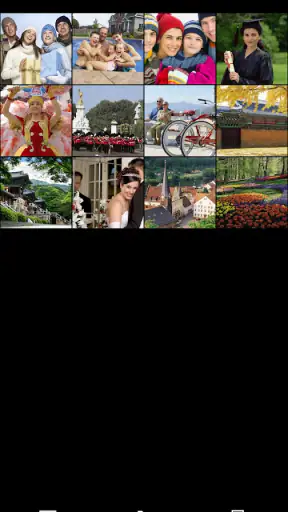


I like photo apps that lead to something tangible, and KODAK Photo Printer is built around that simple idea. Instead of leaving snapshots buried in a phone gallery, it gives me a practical way to prepare images for printing through a compatible KODAK printer. The app sits in the photography category, is free to download, and comes from PRINICS Co., Ltd. In my experience, its appeal is less about replacing a full photo editor and more about making the short journey from phone image to physical memory feel manageable.
That distinction matters in a household. One person may take the photos, another may choose which ones deserve paper, and children may want to decorate or keep the finished results. The app can fit that shared routine well, but it is still worth thinking about who controls the phone, who selects the images, and who presses the final print command. It is a useful tool for casual printing, not a complete household photo-management system.
How it feels when several people share the printing routine
A realistic use case is a family gathering where several relatives have pictures on their own phones. Rather than sending every image to one person through a messaging app, the owner of the printer can let people show their favorites one at a time and prepare a small selection. That keeps the process social: people discuss the crop, choose the frame, and decide whether a picture is worth printing before paper and ink are used.
I find this more enjoyable than ordering prints later because the decision happens while the memory is still fresh. A child can choose a favorite birthday photo, while an adult checks that faces are not cut off. The app is especially suitable for small batches and spontaneous moments. It is less convincing if the goal is to organize a large archive, make a professional album, or prepare hundreds of carefully color-managed images.
The free price makes experimenting easy, but “free” applies to the app itself rather than the whole printing activity. You still need the appropriate KODAK printer and its consumables. That is an important household distinction: the software may cost nothing to install, while the physical workflow depends on hardware, paper, and the printer being ready to use.
The app’s store summary focuses on editing and printing memories, and that matches the way I would use it. I would not open it expecting the depth of a dedicated editing suite. Its value is in keeping editing close to printing, so I can make a quick adjustment and continue toward a physical copy instead of moving between several unrelated tools.
What I would do before handing over the phone
When several people are choosing images, I would first create a temporary album in the phone’s normal gallery. That small step reduces accidental scrolling through unrelated pictures and makes the shared session less awkward. I would then open the app only after deciding which images are available for discussion. This is not a special household mode; it is simply a sensible boundary around a shared device.
That workflow also helps with privacy. A guest does not need to browse the entire camera roll just to select one picture. The phone owner can display a prepared group, keep the selection focused, and take back control before any print is sent. For a family, this is more useful than assuming everyone should have unrestricted access to the device.
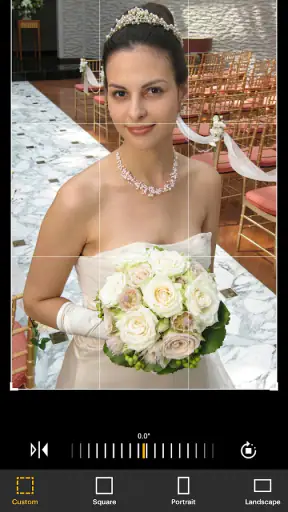
I would also check the image orientation before printing. A picture that looks fine in a phone’s tall display can feel cramped when placed into a printer layout. Reviewing the preview carefully is one of the best habits with any mobile printing app, because a physical print cannot be corrected by simply rotating the screen afterward. If a child is choosing, I would let them make the creative decision while an adult confirms the crop.
Setup boundaries matter more than the first launch
The current version is 5.1.2, and the app supports devices running Android 6.0 or later. That makes it accessible to many older Android phones, but compatibility with the app is only one part of the setup. The printer itself, the phone’s connection settings, and the condition of the consumables all affect whether a shared printing session goes smoothly.
I would set up the printer with the primary user present rather than passing the task to a child or guest. The person responsible for the device should know which printer is being used, how the phone connects to it, and where the printing supplies are kept. This avoids a common household problem: someone believes a photo is ready, while the printer is actually unavailable or waiting for attention.
There is also a useful boundary between editing and authorization. A child can help choose a photo or suggest a design, but the adult holding the phone should review the final preview before confirming the job. That is not because the app is difficult; it is because printing turns a casual tap into a physical result. A second look catches poor crops, duplicate selections, or an image that was chosen by mistake.
I would avoid treating the application as a shared account space. The safest practical approach is to keep the printer owner’s phone as the control point and invite others to participate through conversation. If several household members install the app separately, each person should understand that their phone is not automatically the same as the owner’s device. The app helps prepare and print photos, but it does not replace clear household agreement about access.
Coordinating a group without creating confusion
Shared printing works best when one person acts as the coordinator. That person can gather suggestions, check the preview, and keep track of which images have already been printed. Without that role, two people may send the same picture, change a selection while someone else is reviewing it, or assume that a print request has completed when it has not.
For a party, I would use a simple verbal sequence: choose, preview, approve, print, then move to the next image. It sounds obvious, but this rhythm makes the app easier for people who are unfamiliar with it. It also gives younger users a clear part in the process without handing over every decision on the phone.
Another practical tip is to agree on a small print queue before starting. Even if the app makes individual editing convenient, a group can lose time when everyone searches independently. Asking each person to nominate one or two images first creates a manageable shortlist. The coordinator can then check orientation, framing, and duplicates in one pass.
I would keep the phone charged during a longer session and avoid switching constantly between several people’s devices. Every extra handoff introduces a chance of losing the selected image or confusing which phone is connected to the printer. A single control phone is not as flexible as a fully networked household system, but it is usually easier to understand and supervise.
This is where the app feels strongest: a small, guided activity with a clear owner. It feels less comfortable when everyone expects independent access at the same time. If your household wants each person to manage a separate collection without coordination, a broader cloud photo service or a dedicated multi-user printing setup may suit you better.
Age, trust, and the meaning of “Everyone”
The content rating is Everyone, which makes sense for an app centered on ordinary photo editing and printing. Still, an age label does not answer every household question. The images being viewed may be personal, and printing can involve real costs through supplies. I would therefore treat the app as suitable for supervised participation rather than assuming that every user should have equal control.
Children can get genuine value from the process. They can learn how framing changes a picture, why a portrait may need more space around a face, and how a digital image becomes a keepsake. Giving them a defined task—such as selecting a favorite or checking whether a picture is upright—turns the app into a creative activity instead of passive screen time.
Trust also applies to guests and older relatives who may not be comfortable with mobile controls. I would explain the sequence before opening the editor and avoid making anyone feel rushed. The app is most approachable when the phone owner narrates what is happening: this is the image, this is the preview, and this is the point where the print is confirmed.
For privacy-conscious households, I would keep selection sessions visible and temporary. There is no need to leave a shared phone unlocked with personal photos open after printing. Close the app or return to the normal home screen when the activity ends, especially if the device will be passed around again.
These habits are not signs that the app is unsafe; they are sensible boundaries for any photo tool used around other people. A camera roll can contain private conversations, documents, and images that were never meant for group viewing. The app’s straightforward purpose does not remove the need for the phone owner to decide what others can see.
Where it fits among ordinary photography alternatives
Compared with a general photo editor, this app has a narrower purpose. A broad editor may offer more sophisticated retouching, layers, or detailed color adjustments, while KODAK Photo Printer keeps attention on preparing an image for output. If I wanted to create a polished social post or make extensive corrections, I would probably edit elsewhere first.
Compared with a phone gallery, however, it offers a more direct route to a physical memory. The gallery is excellent for sorting, sharing, and viewing, but it does not by itself provide the same print-focused workflow. The advantage here is convenience when the printer is already part of the household routine.
Compared with online photo-ordering services, the app is better suited to immediate, local moments. I can decide that a picture should exist on paper while everyone is still together. An ordering service may be preferable for larger formats, bulk projects, or people who do not own a compatible printer, but it adds waiting and a separate ordering process.
The trade-off is that this app’s usefulness depends on the printer ecosystem around it. It is not a universal solution for every printer or every kind of photographic output. Before making it the center of a household workflow, I would confirm that the intended KODAK printer and phone combination are supported and ready. That check is more important than the app’s attractive simplicity.
Small details that improve the household workflow
My first non-obvious recommendation is to keep an unedited original beside any version prepared for printing. If a crop or adjustment looks good on paper but not on the phone later, the original gives you a clean starting point. This is particularly useful when several people are experimenting and no one remembers which version was used.
Second, I would print a test image before inviting a large group to choose pictures. A test reveals whether the selected paper, printer condition, and phone preview produce the result everyone expects. It also prevents a child from waiting through a long session only to discover that the setup needs attention.
Third, give each printed image a purpose. A small print might go into a scrapbook, a school project, a refrigerator display, or a greeting card. When the household decides where the picture will live before printing, people tend to choose more carefully and avoid producing a pile of forgotten duplicates.
A fourth useful habit is to separate “keep” images from “share” images. The family may be happy to print a funny picture for the kitchen, while a more personal portrait should remain on the owner’s phone. Discussing that difference before opening the app makes the session more respectful and reduces awkward decisions in front of guests.
Finally, I would not judge the result only from the phone screen. Brightness, contrast, and framing can feel different once an image becomes a physical object. The preview deserves attention, but the purpose of the app is to help bridge two formats, not to make the phone display and the print identical in every visual detail.
Who should use it and who should skip it
I would recommend this app to someone who already owns a compatible KODAK printer and wants a simple way to turn phone photos into physical keepsakes. It is also a good match for households that enjoy small creative activities together, especially when one person is comfortable coordinating the phone and others contribute ideas.
It makes less sense for someone who only wants advanced photo correction, professional color control, or a large archive-management system. Those users will likely be happier with a dedicated editor, a desktop workflow, or a service designed for larger print orders. The app’s focus is a strength for casual printing, but it becomes a limitation when the project grows more demanding.
I would also skip it as a shared solution if your household expects many people to print independently from their own phones at the same time. The app can support participation, but smooth coordination still depends on people agreeing on who controls the session. A single owner-led workflow is more realistic than treating it like a full multi-user family library.
My household verdict
With an average rating of 4.8 from around 36 thousand ratings and more than a million installs, the app has clearly found an audience among people who want KODAK printing to begin on a phone. Those figures do not replace personal testing, but they fit my overall impression: this is a focused photography companion rather than an ambitious all-purpose editor.
PRINICS Co., Ltd has kept the central idea easy to understand. I choose a photo, prepare it for the intended physical result, and involve the people around me without needing a complicated creative workflow. The experience is most satisfying when the printer is ready, the image selection is limited, and one trusted person guides the final confirmation.
My main caution is to think beyond the free installation. The real commitment is the printer-based ecosystem and the household routine around it. If those are already in place, the app can make everyday memories feel more immediate. If you do not have the right printer or need extensive editing, a different photography tool will probably be a better starting point.
For me, the strongest reason to keep it installed is the way it changes a phone photo from something easily forgotten into something people can hold, display, and discuss. Use it as a supervised, print-focused bridge between personal camera rolls and shared memories, and it makes sense. Expecting it to manage every person, every image, and every printing need in a busy household would be asking it to do more than its focused design suggests.


